

How to start online ordering with Zovi
You choose a link name, add your menu, set up your page, connect your own Razorpay account and share your link. Zovi is launching in 2027.
- No website to build from scratch.
- You run everything in Zovi Business.
- Payments go to your own Razorpay account.
- Already on a POS? Use Zentaro Serve.
Six steps to your first order.
Choose your link nameyou
You choose the name of your address, and the page checks at once that it is free.
Add your menuyou
Add your dishes and prices in Zovi Business, the app for restaurants that do not have a POS.
Set up your pageyou
Pick one of four page templates and one of nine colour themes, add your photos, then preview and publish.
Connect your Razorpay accountyou
Paste your own Razorpay keys. Online payment turns on once your Razorpay account is active.
Share your linkguest
Put your link on your menu, your phone and your social pages. Guests order and book from it.
Run your ordersyou
Accept each order, prepare it, and follow it to completed. Assign your own rider on a delivery order.
Set up your page in Zovi Business.
One screen of the app you will use: pick a template and a theme, add your photos, preview and publish.
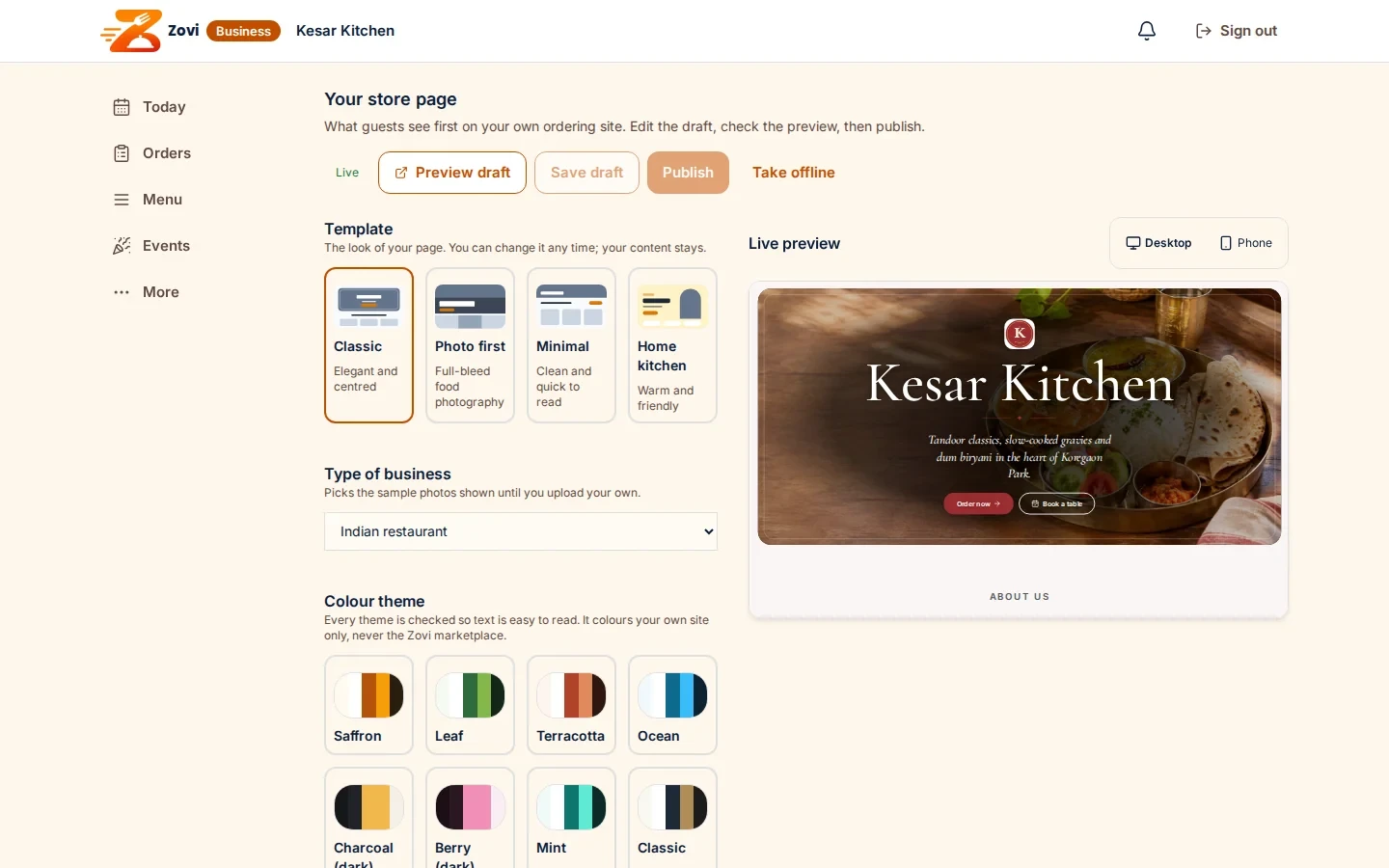
App screen with sample data
No POS: use Zovi Business. A full POS: use Zentaro Serve.
Common questions.
How do I start with Zovi?
You choose your link name, add your menu, set up your page, connect your own Razorpay account and share your link. Zovi is launching in 2027.
Do I need to build my own website?
No. You pick one of four page templates and one of nine colour themes, add your photos, then preview and publish.
How do I get paid?
Payments go to your own Razorpay account, which charges its own payment fees. You paste your own Razorpay keys into Zovi Business once.
I already use a POS. What do I do?
Use Zentaro Serve. Orders from your Zovi website arrive in Zentaro Serve as Zovi Store orders, with a badge, and your menu and prices come from Serve.
Ready to start?
Zovi launches in 2027. Tell us what you run today and we will get in touch.
Last updated: